
Explore our library to learn more through variety of topics

Microsoft Dynamics 365 Business Central for Project Managers
Microsoft Dynamics 365 Business Central offers project managers the ability to manage customer projects quickly, easily, and efficiently. With the power of Dynamics 365, you’ll be able to increase productivity while simultaneously reducing your overall workload. Below, we’ll look at how to use Dynamic 365 from a project management perspective.
Using Dynamics 365 for Project Management
As a project manager, you can use Dynamics 365 Business Central to develop and present a solution to your customers that includes billable time, tasks, mobility, resources, planning, and so on.
To see just how effective Dynamics 365 can be for project managers, we’ll look at a five step process centered around creating a new job and invoicing the corresponding customer. The steps include:
- Creating a new job
- Setting up a time sheet
- Approving the time sheet
- Creating a job journal
- Invoicing the customer
1. Creating a Job in Dynamics 365
First, we’ll log into Dynamics 365 as a project manager. When logged in as a project manager, you’ll immediately have access to all of the information needed to perform your work effectively.
To get started, we’ll create a new job. There are two ways this can be done: you can use an existing job template to create the new job, or simply start a new project. If you opt to use an existing job, it’s best to select a previous job similar to the one you’re currently setting up.
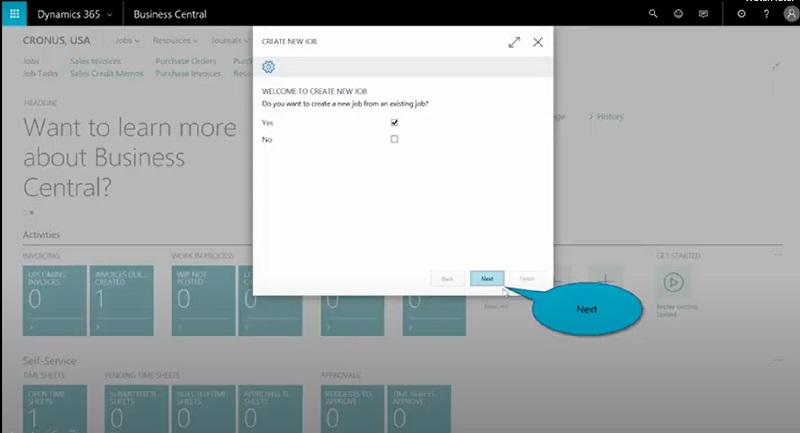
Under Start, select Create New Job. Then, select Yes to create a new job from an existing one. You can then choose which job to use as your template and select which tasks to associate with the job. You have the option of picking individual tasks or a range of tasks. When you’re done, click Finish and the new job will be created.
2. Setting Up a New Time Sheet
Now, let’s create a sample time sheet for a consultant who’s working on this new job.
Under Time Sheets on the dashboard page, select Open Time Sheets. Open a time sheet, and you’ll notice that there are tasks which individual entries can be assigned to. We’ll assign this time sheet to the Consulting task that’s associated with the current project. Finally, we’ll input the time involved for this task, then submit the timesheet for approval.
3. Approving a Time Sheet
So, the consultant working on this project has submitted their time for approval. As a project manager, you’ll need to approve it.
On the project manager dashboard under Approvals, there will now be a new time sheet available under Time Sheets...Approve. Click here, open the corresponding time sheet, and then click Approve at the top of the screen to approve the time sheet.
4. Creating a Job Journal
Back on the dashboard screen, click the plus sign above Job Journal under the Start heading.
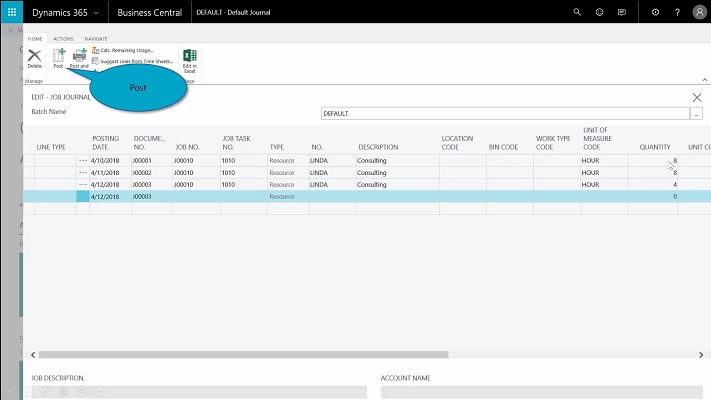
Now that the consultant’s time has been submitted and approved, Dynamics 365 can set up your job journal for you automatically. When you click the Suggested Lines option at the top of the screen, the approved time sheet entries associated with various job tasks will be imported into the job journal. Click Post in order to post the journal lines.
5. Invoicing Your Customer in Dynamics 365
Finally, we can invoice the customer for the job in question.
From the project manager dashboard, select Jobs from the top-left corner of the screen. Next, click Process, and then choose Create Job Sales Invoice from the drop down menu. Click OK to complete the invoice creation.
Now, we’ll post this sales invoice.
Select Process again, followed by Sales Invoices/Credit Memos. Next, click Open Sales Invoice/Credit Memos.
From here, you can select individual lines or post all of the tasks listed.
Either option will result in the creation and posting of an invoice for your customer.
Conclusion
Microsoft Dynamics 365 Business Central: a Project Management Solution. As you can see, Dynamics 365 allows you to increase productivity, reduce the amount of time spent on data entry, set up and manage customer projects with ease, and improve your overall decision making process as a project manager.
Do not hesitate to contact with our experts. NaviWorld Việt Nam has always been the most senior partner of Microsoft, ranked Gold in Dynamics 365.
By: ERP Software Blog
** Hotline: 092 636 2468
** Email: info@naviworld.com.vn
** Fanpage: NaviWorldVietnam
Ready to get going?
Ready to get going?
Please share your contact informations below to allow one of our expert to contact you.
About NaviWorld
NaviWorld Vietnam is a leading solutions provider of end-to-end integrated and adaptable business management solutions for mid-sized companies in Vietnam and South East Asia. With solutions catering for various sectors from Distribution to Retail, Services to Manufacturing, NaviWorld brings a portfolio of internationally proven, fully integrated technology business solutions to our customers.
Solutions
Contact Us
Ha Noi
-
11th Floor, 41 Hai Ba Trung Street, Hoan Kiem District, HN
-
Tel: +8424-3636 6268
Ho Chi Minh
- 13P Floor, 2BIS Nguyen Thi Minh Khai St., Dist. 1, HCM City
- Tel: +8428-3840 3177